Hour change in Cosmi displays
In this article we are going to explain how to change the time in the Cosmi equipment through the factory software. To do this we will follow the steps below:
Changing the time on Cosmi LED units
1. Previous step to change the time
Open the HD Player. Go to the menu at the top and click on <control> (1) This button will open a drop-down menu, in which we must click on <time correction>(2).
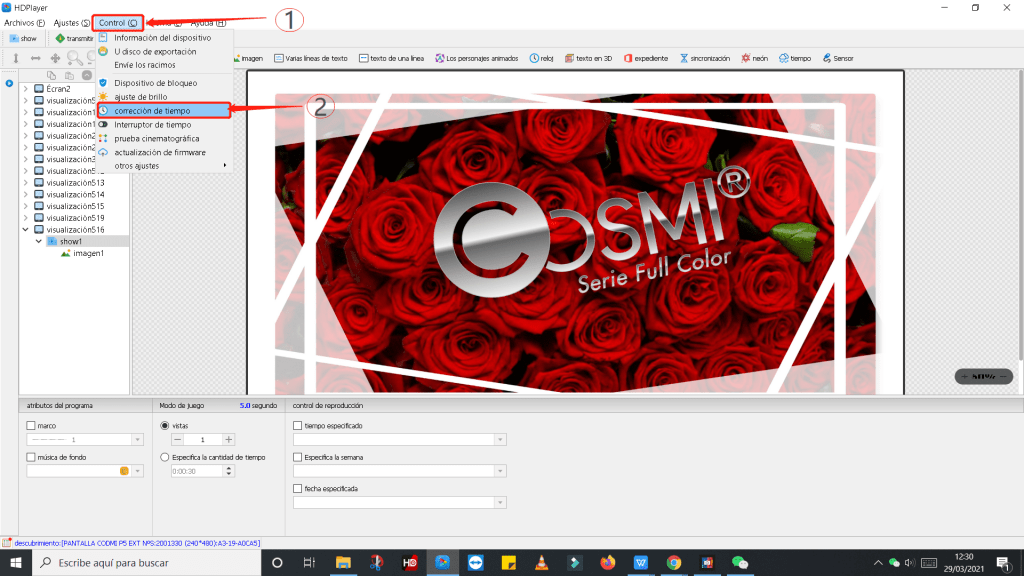
Time changeover Cosmi LED equipment
2. Updating the time:
– Update to daylight saving time
A window called device information will open in which a series of options related to the date and time will appear. In this window, we make sure that the time zone that belongs to us is correctly set, in this case we have activated the system time zone: (UTC+01:00) Brussels, Copenhagen, Madrid, Paris (as shown in the image below).
Also click on the daylight saving time button (when it turns blue it means that it is already activated).
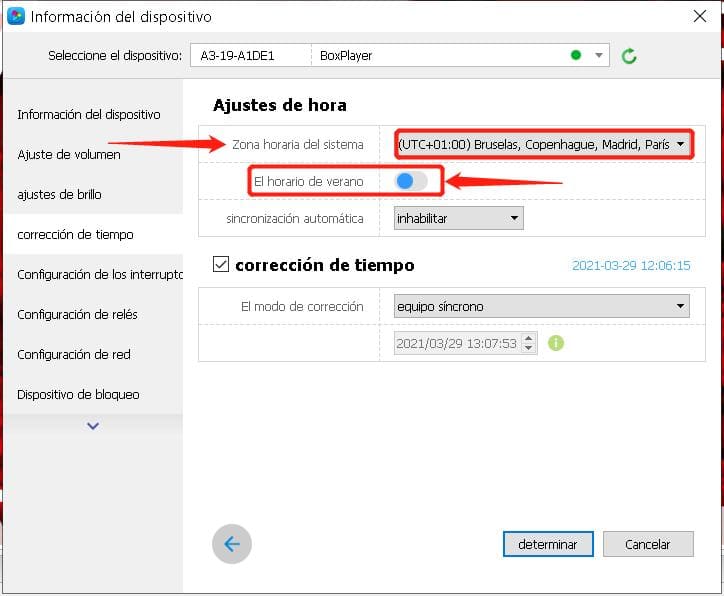
Time change LED Cosmi LED equipment
– Updating to winter time
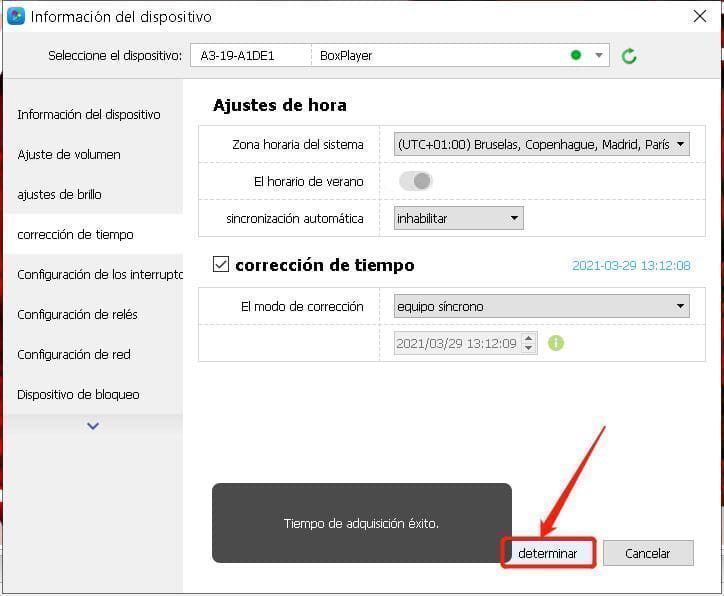
A window called device information will open in which a series of options related to the date and time will appear. In this window, we make sure that the time zone that belongs to us is correctly set, in this case we have activated the system time zone: (UTC+01:00) Brussels, Copenhagen, Madrid, Paris (as shown in the image below).
We must also make sure that the daylight saving time button is grayed out. This means that daylight saving time is deactivated. So we will have winter time active. Then click on Set
3. Save settings.
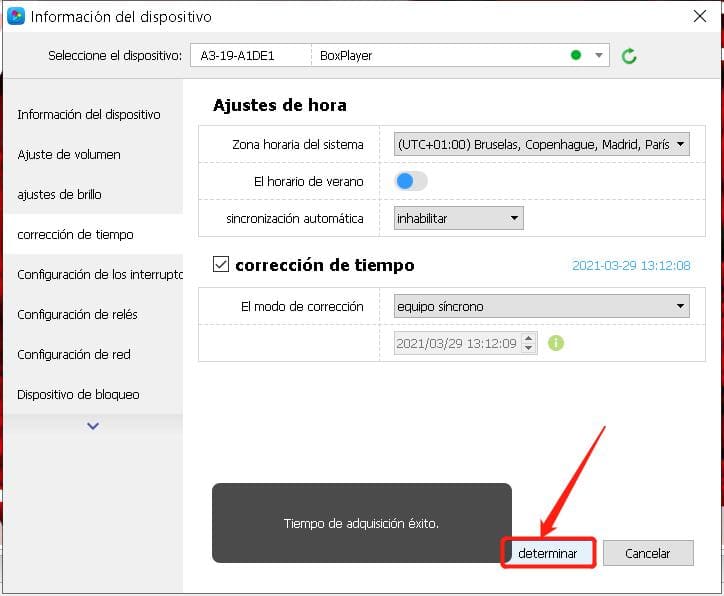
Once the relevant changes have been made, click on <determine> to save the newly defined settings.
4. Adjust time use
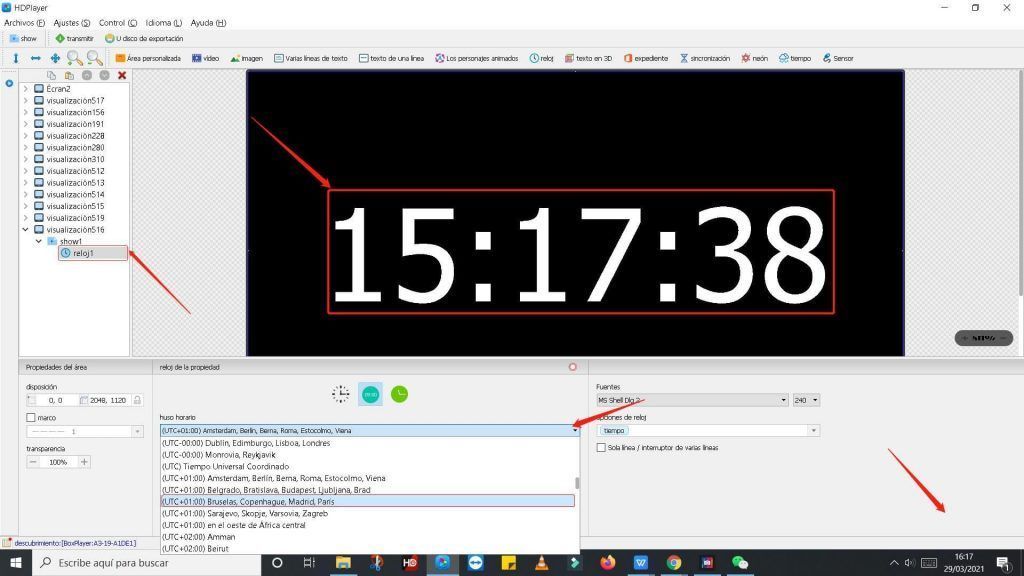
Once this modification is done, we are going to update now the clock of the Cosmi equipment. To do this we click on the clock tab (located on the side as show, since we will have this show created previously). When we click on this button, the lower section seen in the image will appear, in which we must click on <time use>. Then a drop-down will open in which you must select the time zone in which we are located, in this case: (UTC+1:00) Brussels, Copenhagen, Madrid, Paris.
If we look at the time, it is still out of date.
5. Update and transmit
To set the new time in the Cosmi unit, press the update icon(1) (cogwheel shown in the picture below). Pressing this icon will turn pastel blue. This means that the time change has been successfully updated as shown on the screen.
Finally, to display the new time on the Cosmi unit, click on the <transmit>(2) button. In this way you will be able to see the new updated time in the unit.
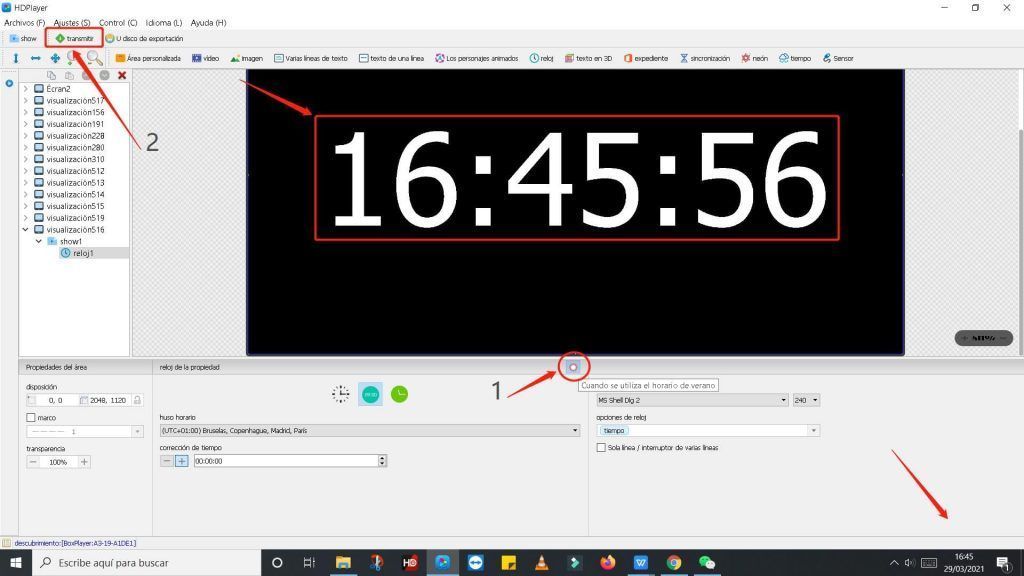
Finally the time remains updated in the equipment or equipment in which the time change has been made. This is an example of a time change in one of our equipments located at the Universidad Politecnica de Cartagena, installed by one of our official partners Cosmi.

- You may be interested in: